
OpenCode as a server: AI agents that work while I sleep
My main machine is a beast. Ryzen 9 9950X3D, 64 GB of RAM, RX 9060 XT, three monitors, the works. It barely ever shuts off. So at some point I started thinking: why isn’t this thing working for me when I’m not sitting in front of it?
The answer is now: it does. I’m running OpenCode as a persistent server on this machine, accessible from anywhere through my WireGuard VPN. I can spin up coding sessions from my MacBook Air, my phone, wherever. And the best part? I have scheduled jobs that run overnight: adding tests, updating documentation, enforcing code conventions. I wake up to PRs waiting for my review.
Here’s the full setup.
The architecture
  ┌─────────────────────────────────────────────────────────┐
  │                    roger-beast                          │
  │              (Ryzen 9 9950X3D / 64GB)                   │
  │                                                         │
  │  ┌──────────────────┐      ┌──────────────────────┐     │
  │  │  opencode serve  │◀─────│ systemd user service │     │
  │  │   :4096 (web UI) │      │ (auto-start/restart) │     │
  │  └────────┬─────────┘      └──────────────────────┘     │
  │           │                                             │
  │           │            ┌──────────────────────┐         │
  │           │            │  opencode-scheduler  │         │
  │           │            │  (systemd timers)    │         │
  │           │            │ ┌──────────────────┐ │         │
  │           │            │ │ 2am: add tests   │ │         │
  │           │            │ │ 3am: update docs │ │         │
  │           │            │ │ 4am: conventions │ │         │
  │           │            │ └──────────────────┘ │         │
  │           │            └──────────────────────┘         │
  │           │                                             │
  └───────────┼─────────────────────────────────────────────┘
              │
      ┌───────┴──────────────┐
      │ Nginx Proxy          │
      │ Manager              │
      │(opencode.example.com)│
      └───────┬──────────────┘
              │
    ┌─────────┴──────────┐
    │    WireGuard VPN   │
    │   / Local Network  │
    └─────────┬──────────┘
              │
     ┌────────┴────────┐
     │                 │
  ┌──┴───┐      ┌─────┴──────┐
  │ 💻   │      │ 📱         │
  │ MBA  │      │ Phone      │
  └──────┘      └────────────┘
The idea is simple: OpenCode runs as a systemd user service, Nginx Proxy Manager
gives it a nice domain, and WireGuard makes sure only my devices can reach it.
From any browser on any device, I just go to opencode.example.com and I’m in.
Phase 1: OpenCode server with systemd
OpenCode has a serve command that starts a web UI you can access from a
browser. The trick is making it persistent so it survives reboots and restarts
itself if it crashes.
First, create a systemd user service. This means it runs as your user, not as root, which is important because it needs access to your home directory, your API keys, your OpenCode config, everything.
Create the file at ~/.config/systemd/user/opencode.service:
[Unit]
Description=OpenCode headless server
After=network.target

[Service]
ExecStart=/home/roger/.opencode/bin/opencode serve --hostname 0.0.0.0 --port 4096
Restart=on-failure
RestartSec=5

[Install]
WantedBy=default.target
A few things to note:
--hostname 0.0.0.0makes it listen on all interfaces, not just localhost. This is necessary so that Nginx Proxy Manager (or other devices on your network) can reach it.--port 4096is arbitrary. Pick whatever you want, just make sure it doesn’t conflict with anything else.Restart=on-failurewithRestartSec=5means if OpenCode crashes, systemd will bring it back up after 5 seconds. I’ve never had it crash, but it’s nice to know it’s there.WantedBy=default.targetmeans it starts on login. Since this machine barely ever restarts, that’s basically “always on.”
Enable and start it:
systemctl --user daemon-reload
systemctl --user enable opencode.service
systemctl --user start opencode.service
Verify it’s running:
systemctl --user status opencode.service
You should see it active and running. If you want the service to keep running even when you’re not logged in (which you probably do, since the whole point is that it runs when you’re away), you need to enable lingering:
sudo loginctl enable-linger roger
Replace roger with your username. This tells systemd to keep your user
services running even after you log out. Without this, systemd kills your user
services when your last session closes, which defeats the entire purpose.
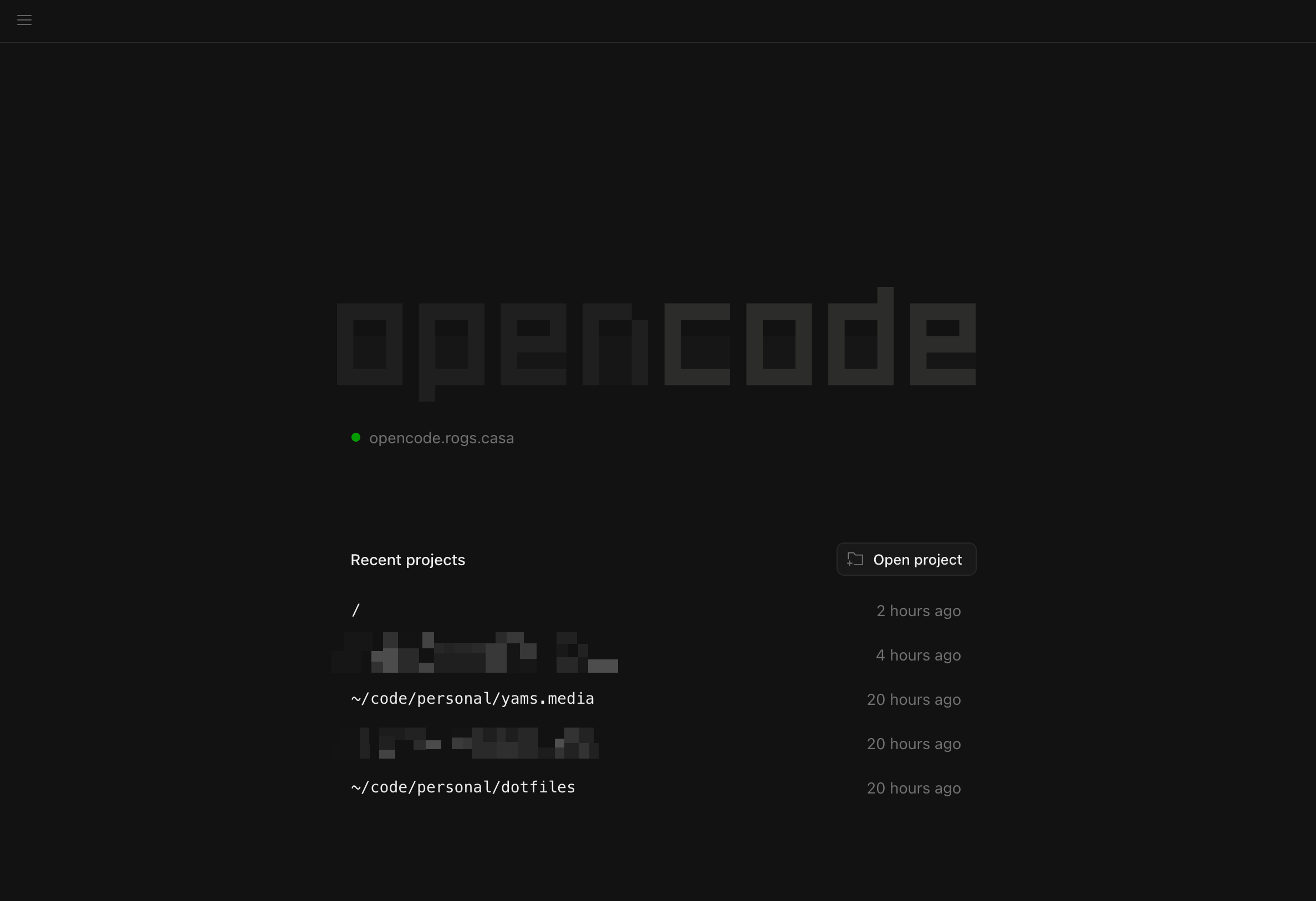
At this point, you should be able to open http://localhost:4096 on the machine
and see the OpenCode web UI.
Phase 2: Nginx Proxy Manager + WireGuard
I use Nginx Proxy Manager as my reverse proxy. It’s a Docker-based GUI for managing Nginx configs, SSL certificates, and proxy hosts. If you prefer raw Nginx configs, you can absolutely do that instead, the concept is the same: point a domain at the OpenCode port.
In Nginx Proxy Manager, I created a new proxy host:
- Domain:
opencode.example.com - Scheme:
http - Forward Hostname/IP:
192.168.x.x(the local IP of my machine) - Forward Port:
4096 - Websockets Support: enabled (OpenCode’s web UI uses websockets)
For the access part, I don’t need to worry too much about authentication because the domain is only accessible from two places:
- My local network: If I’m at home, my devices are already on the same network as the machine.
- My WireGuard VPN: If I’m remote, I connect to my WireGuard VPN first, which puts me on the same network. My WireGuard setup is the same one I described in my Claude Code from the beach post.
The DNS for opencode.example.com points to the internal IP of the machine
running Nginx Proxy Manager. This means the domain simply doesn’t resolve from
the public internet. You’d have to be on my network (or VPN) for it to go
anywhere.
Phase 3: Accessing from anywhere
This is the satisfying part. Once the server is running and the proxy is configured, the workflow from any device is:
- Connect to WireGuard (if I’m not already home)
- Open a browser
- Go to
opencode.example.com - Done. Full OpenCode web UI, all my agents, all my MCP servers, everything.
From my MacBook Air at a coffee shop, from my phone on the couch, doesn’t matter. The web UI is the same everywhere. I can start a task on my MacBook, close the laptop, pick it up on my phone later, and everything is still there because the server is running on the beast at home.
This pairs really nicely with my Claude Code from the beach setup, but it’s way friendlier. That setup uses mosh + tmux + SSH bridges through Termux to get a terminal on a remote machine. It works great for Claude Code (which is a TUI), but it’s a lot of moving parts: you need Termux, SSH keys on your phone, a jump box, mosh installed everywhere. If something breaks in the chain, you’re debugging SSH configs from a phone keyboard. I wrote a whole blog post about that setup and I’m proud of it, but let’s be real: the fact that I needed an entire blog post to explain how to use Claude Code from my phone is kind of the problem.
With OpenCode, I just open a browser. That’s it. Any browser, on any device. No Termux, no SSH keys, no jump box, no terminal emulator. My phone’s regular browser works perfectly. My MacBook’s browser works perfectly. If I ever get a tablet, that’ll work too. The barrier to entry went from “install Termux, configure SSH, set up mosh, create fish aliases” to “open Firefox.”
Hey Anthropic, if you’re reading this: please give Claude Code a web UI. I love your tool, I pay $100/month for it, but the fact that OpenCode can do this out of the box and Claude Code can’t is… not great. I shouldn’t need a 600-word phase-by-phase guide to use my coding agent from my phone. Just saying. 🙃
I still use the Claude Code + mosh + tmux setup for Claude Code specifically (since it’s terminal-only), but for OpenCode work, the web UI is a massive quality-of-life upgrade for mobile coding.
Phase 4: The overnight crew
This is my favorite part. The server runs 24/7, so why not put it to work while I sleep?
I use the opencode-scheduler plugin, which lets you schedule recurring jobs using your OS’s native scheduler (systemd timers on Linux, launchd on Mac). It’s an OpenCode plugin, so you set it up directly from the OpenCode UI.
First, add the plugin to your opencode.json:
{
  "plugin": ["opencode-scheduler"]
}
Then, from the OpenCode UI, you just tell it what you want in natural language:
Schedule a job that runs every weekday at 2am and runs the test-gap-pr-cronjob skill
The plugin takes care of creating the systemd timer and service under
~/.config/systemd/user/. You can verify it’s installed with:
systemctl --user list-timers | grep opencode
What my overnight jobs do
I have three scheduled jobs that run between 1 AM and 6 AM while I’m sleeping. Each one uses a custom OpenCode skill (similar to the planning/execution/review agents I described on my AI Toolbox page):
- 2 AM - Test gap finder: Scans the codebase for untested or under-tested code, writes the missing tests, and opens a PR.
- 3 AM - Documentation updater: Checks for outdated or missing docstrings and README sections, updates them, and opens a PR.
- 4 AM - Convention enforcer: Reviews code for style and convention violations that linters don’t catch (naming patterns, architectural decisions, etc.), fixes them, and opens a PR.
Each job uses a custom skill that knows the project’s conventions, testing patterns, and documentation style. The skills are the same kind of custom agents I build for my regular OpenCode workflow, just triggered on a schedule instead of manually.
The morning routine
When I log in in the morning, I usually have 1-3 PRs waiting for me. Most of them are good to go with minor tweaks. Some need more work. Either way, the tedious stuff (writing tests for edge cases, updating docstrings, fixing inconsistent naming) is already done, and I just need to review it.
It’s like having a junior developer who works the night shift. They’re not perfect, but they’re reliable, they don’t complain, and they’re surprisingly good at the boring stuff.
You can check the logs for any job at any time:
# From the OpenCode UI
Show logs for test-gap-pr-cronjob

# Or directly on disk
cat ~/.config/opencode/logs/test-gap-pr-cronjob.log
The specs
For anyone curious about the machine running all of this:
OS: Manjaro Linux 26.0.4
Host: B850M Pro-A WiFi
Kernel: 6.12.77-1-MANJARO
CPU: AMD Ryzen 9 9950X3D (32) @ 5.752GHz
GPU: AMD ATI Radeon RX 9060 XT GAMING OC 16G
Memory: 64 GB DDR5
Network: WiFi 6
Uptime: usually measured in days, not hours
The machine is wildly overpowered for this. OpenCode’s server uses barely any resources when idle, and even during active sessions or scheduled jobs, it doesn’t break a sweat. If you have a less powerful machine that stays on, this setup will work fine for you too.
Conclusion
The whole setup took maybe 30 minutes. A systemd service, a proxy host, and a scheduler plugin. That’s it.
What I love about this is that it extends my AI Toolbox in a way I didn’t expect. I went from “I use OpenCode when I’m at my desk” to “OpenCode is always running and I can use it from anywhere, and it also does work for me while I sleep.” The scheduled jobs alone have saved me hours of tedious work every week.
If you have a machine that stays on (even a modest home server or an old laptop), you can do this. You don’t need a Ryzen 9 or 64 GB of RAM. You need a machine that doesn’t turn off, a way to reach it remotely, and the willingness to let AI handle the boring stuff while you’re asleep.
All my configs are public in my dotfiles: git.rogs.me/rogs/dotfiles
If you have questions, hit me up. And if you set this up and wake up to PRs you didn’t write, let me know. That first morning is a great feeling.
See you in the next one!